

What Is the SEO Checklist for a WordPress Website?
A WordPress SEO checklist is a fixed sequence of settings, tools and publishing habits that lets Google find, understand and rank your pages: unblock indexing, set clean permalinks, add an SEO plugin, connect Google Search Console, then optimise content, images, speed and security. Work through it in that order, because every later step assumes the earlier ones are in place.
This guide follows the order I use when I audit a WordPress website, starting with the problems that silently keep a site out of search results. The examples use a fictional dental clinic site, since small local businesses show these mistakes most often.
Is WordPress Actually Good for SEO?
Yes, WordPress gives you a solid SEO base, but it does not rank a site on its own. Since version 5.5, WordPress generates an XML sitemap automatically, lets you choose readable URLs, and includes a setting that asks search engines to stay away while you build.
What it leaves to you is the work that actually earns rankings. You still choose the keywords, write the titles, and publish pages worth reading.
Plugins help, but they are tools, not a strategy. A site left on default plugin settings tends to underperform a leaner site where someone made deliberate choices about structure, speed and content.
Why Is Google Ignoring My WordPress Site?
The most common cause is a single ticked box: Discourage search engines from indexing this site, found under Settings → Reading. Untick it, click Save Changes, and your pages become eligible for indexing again.
I have seen finished sites sit invisible for months because this setting was left on from the build stage. Check it first, before touching anything else.
The setting is a request, not a lock. Visitors can still open the pages, and each search engine decides whether to honour it, so never use it to hide private content.
Which Permalink Structure Works Best for WordPress SEO?
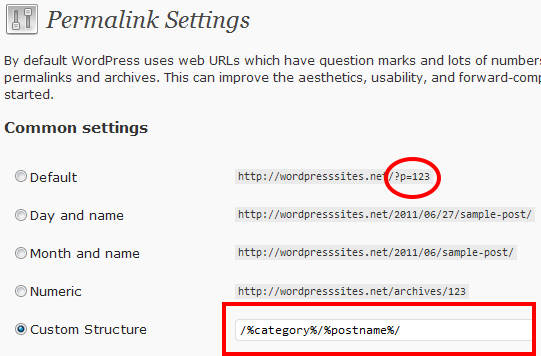
Post name is the permalink structure to choose: go to Settings → Permalinks, select Post name, and save. Your addresses then read like yourclinic.com/teeth-whitening-cost/ instead of yourclinic.com/?p=123, which tells both visitors and Google what the page covers.
Set this before you publish many posts, because a published address should stay the same permanently. If the site is already live, add 301 redirects from the old addresses to the new ones, or visitors and link equity will land on error pages. Keep slugs short, separate words with hyphens, and avoid ID numbers. WordPress documents the options in its permalink guide.
Do I Need an SEO Plugin for WordPress?
You do not strictly need one, but an SEO plugin such as Rank Math or Yoast SEO handles several checklist items in one place. It controls titles and meta descriptions, keeps the sitemap current, manages canonical URLs, adds schema, and scores each post as you write.
Treat the green lights as guidance rather than a goal. I have watched pages score perfectly and still read badly, so a plugin cannot replace keyword research, internal linking and good writing.
After installing, spend ten minutes on the defaults. Set title templates, confirm the sitemap is on, and connect the plugin to Google Search Console and Bing Webmaster Tools so errors reach you quickly.
How Do I Add My WordPress Site to Google Search Console?
Add your site to Google Search Console, verify ownership, and submit your sitemap so Google can see which pages exist. Most SEO plugins can help with verification.
- Add your domain as a property and confirm ownership.
- Locate your sitemap:
/wp-sitemap.xmlfor the default WordPress sitemap, or/sitemap_index.xmlwhen Rank Math creates it. - Open the Sitemaps report and submit that address.
- Return later to the Pages and Core Web Vitals reports to catch indexing errors.
A submitted sitemap is only a hint, so Google may not crawl every page straight away. Results also arrive slowly: some changes show within hours, others take months, and Google advises waiting a few weeks before judging whether a change worked.
Should I Set Up Google Analytics Too?
Yes, because Search Console shows what happens before the click, while Google Analytics shows what visitors do afterwards. Google offers Google Analytics free of charge, and the two tools together reveal which posts attract visitors and which ones keep them reading.
Create an account for the site and connect it to WordPress, either through your SEO plugin or a dedicated connector. Once both tools are running, track impressions, clicks, click-through rate and average position, and flag any page that begins to slip. That list becomes your refresh queue.
How Do I Find the Keywords My Customers Actually Use?
Start with the phrase a customer would type when they need what you sell, then check it against real tools. Google Keyword Planner and Google Trends both show how interest in a phrase differs by region, down to city level.
Assign one main keyword to each page and place it where it reads naturally: the title, the opening paragraph, and a heading. Favour long-tail and question-style searches, because they reveal intent. “Does teeth whitening hurt” tells you more than “dentist”.
Avoid targeting the same keyword on two pages. Two pages competing for one phrase usually leave you with neither ranking well, so keep a simple sheet mapping each keyword to a single URL.
What Kind of Content Does Google Reward on a WordPress Site?
Google rewards content that helps the reader finish their task, so write pages that cover the topic fully and add something of your own. Its guidance on creating helpful content asks whether a page offers original information, whether a reader would bookmark or share it, and whether it is free of spelling mistakes.
Google also states it has no preferred word count, so length should follow the topic. A page that answers a question in 400 words beats a padded 2,000-word page.
Structure helps both people and crawlers. Use one H1, descriptive H2 and H3 subheadings that include related terms, and keep paragraphs to two to four lines. Add a real screenshot or short video where it clarifies a step, since that can lift time on page.
How Should I Write Titles and Meta Descriptions in WordPress?
Write a unique title and meta description for every page, with the target keyword near the front of each. The title is the clickable headline in the results, and the meta description is the short text beneath it.
Google builds the visible snippet mainly from the page itself, but it may use your description when that describes the page better. It also shortens titles and descriptions to fit the screen, so put the important words first and skip any fixed length target.
Your SEO plugin lets you set templates such as the post title followed by the site name, then override them on key pages. For a dental clinic, a title that starts with “Teeth Whitening Cost” and ends with the clinic name does the job.
How Do Internal Links Help My WordPress SEO?
Internal links help visitors find related pages and help Google discover and understand them. Google’s SEO starter guide advises giving every important page at least one link from another page on your site.
Write anchor text that says where the link goes, and never use “click here”. A post about whitening can naturally point to a service page, and a guide on rankings can send readers to SEO services for small businesses or to a Local SEO page when location matters.
Look for orphan pages, which are pages with no internal links pointing to them. They are hard for crawlers to reach, and a site audit tool such as Screaming Frog will list them in minutes.
How Do I Optimise Images in WordPress for SEO?
Optimise each image in four ways: give it a descriptive file name, add alt text, compress it, and choose a modern format. Do this before upload, because renaming later breaks references.
A descriptive file name such as teeth-whitening-before-after.jpg gives Google a clue about the image, which a camera name like IMG_0245.jpg cannot. Alt text is a short description that screen readers read aloud, and Google uses it to understand what the image shows. To add it in the block editor, select the image, open the sidebar settings, and fill in Alternative text, or mark the image decorative if it adds no information.
Alt text entered in block settings applies only to that post, while text added in the Media Library becomes the default for future insertions. Large files slow pages down, so compress them, and a common target is under 100KB for most images. Our free image resizer helps when you need quick size reductions.
| Format | Best used for |
|---|---|
| WebP or AVIF | Photos and most page images, with high quality at small file sizes |
| PNG | Graphics that need a transparent background |
| SVG | Logos and icons that must scale without losing clarity |
Enable lazy loading so images load only as they enter the viewport. Upload images at the largest size they will actually display, and let WordPress serve responsive versions through the srcset attribute.
How Fast Does My WordPress Site Need to Be?
Fast enough to pass Google’s Core Web Vitals, which measure how a page loads, responds and stays stable. Check the Core Web Vitals report in Search Console, because it reflects what real visitors experience.
| Metric | What it measures | Typical fix |
|---|---|---|
| Largest Contentful Paint (LCP) | How quickly the main content appears | Compress hero images, use WebP or AVIF, preload fonts |
| Interaction to Next Paint (INP) | How fast the page reacts to taps and clicks | Defer scripts, remove unused plugins and libraries |
| Cumulative Layout Shift (CLS) | How much the layout jumps while loading | Reserve fixed dimensions for ads, embeds and large images |
Google explains the thresholds on web.dev. Beyond those metrics, choose reliable hosting, install a lightweight theme such as Astra or GeneratePress, and add a caching plugin like WP Rocket or W3 Total Cache. A CDN then serves files from a server near each visitor. Test on a real phone as well, because mobile-first indexing means the small-screen version is the one Google evaluates.
What Technical SEO Settings Should I Check on WordPress?
Check HTTPS, robots.txt, canonical tags, redirects, schema and breadcrumbs, because small errors here can hide whole sections of a site. HTTPS is a trust signal and a ranking factor, so install an SSL certificate and make sure every internal link uses the secure address.
Review your robots.txt file, which tells crawlers where they may go. Block admin pages, but confirm that categories, posts and service pages are not disallowed, as one misplaced line can make large sections invisible. Google explains the file in its robots.txt introduction.
Use canonical tags so tag archives and similar URLs point to one master page, as described in Google’s guide to consolidating duplicate URLs. Add schema markup for articles, FAQs and local businesses so search engines know what the content means. During migrations, set 301 redirects and fix 404 errors, since broken links waste crawl budget and cause traffic loss.
How Do I Keep a WordPress Site Secure Without Hurting SEO?
Keep WordPress core, themes and plugins updated, and back up the site before each update. Outdated software is a leading entry point for attackers, and a hacked site can lose traffic and trust quickly.
Add a web application firewall, store backups off-site, and use uptime monitoring such as UptimeRobot so you hear about downtime the moment it happens. Repeated crawl failures can hurt visibility, so consistent uptime counts as a trust signal.
Clean the database now and then by removing old post revisions, spam comments and transients. Fewer plugins also means fewer conflicts, so favour a few well-chosen tools over a long list.
How Do I Promote New Posts and Keep Old Ones Ranking?
Share every new post where your audience already is, and revisit older posts on a schedule. Google mostly finds new pages through links from pages it already knows, so a post nobody links to can take a long while to appear.
Use social media, your newsletter and local groups, and consider earning links through guest posts and relevant backlinks. Word of mouth builds slowly but lasts.
Then treat SEO as ongoing work. Review settings every quarter and again after major WordPress or plugin updates, which can change how meta tags, sitemaps and schema behave. Refresh statistics, improve formatting, add internal links, and keep the same URL when you update a post so existing links keep working.
What Mistakes Should I Avoid on a WordPress SEO Checklist?
Avoid relying on plugins alone, because they automate checks but cannot supply keyword thinking, structure or good writing. Overloading a site with plugins is the next common mistake, and it slows pages and creates conflicts.
Skipping image optimisation produces heavy pages and weak Core Web Vitals. Forgetting redirects during a migration causes broken links and lost traffic, and duplicate H1 tags on one page blur your content hierarchy for search engines.
Another trap is chasing every checklist item at once. Fix indexing, permalinks and speed first, then move to content and links, so each improvement builds on a stable base.
What Is the WordPress SEO Checklist for Beginners?
The beginner checklist is: untick the search engine visibility box, set Post name permalinks, install an SEO plugin, submit a sitemap to Google Search Console, write keyword-focused titles and headings, and optimise every image. Add mobile-friendly design and HTTPS, and you have a strong foundation before attempting advanced tactics.
Do I Need Both an SEO Plugin and Manual Optimisation?
Yes, you need both. A plugin provides automation and error checking, while manual work covers keyword research, internal linking and topical authority. Think of the plugin as the toolbox and your own judgement as the craftsmanship.
Can a WordPress Site Rank Without Technical SEO?
It is highly unlikely. Without crawlable architecture, fast load times, structured data and proper redirects, Google struggles to index your content, and even excellent articles can stay invisible when the technical foundation is broken.
Should I Hire Someone to Handle WordPress SEO?
Hiring help makes sense when the site earns revenue and you lack time for audits, technical fixes and ongoing optimisation. A specialist can run a full audit, fix advanced issues, and build a plan that goes beyond the basics. If that is what you need, you can get in touch with Digitaldott for a free consultation.